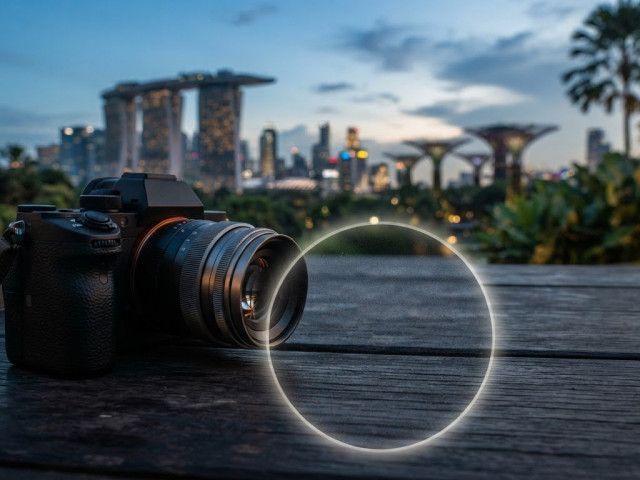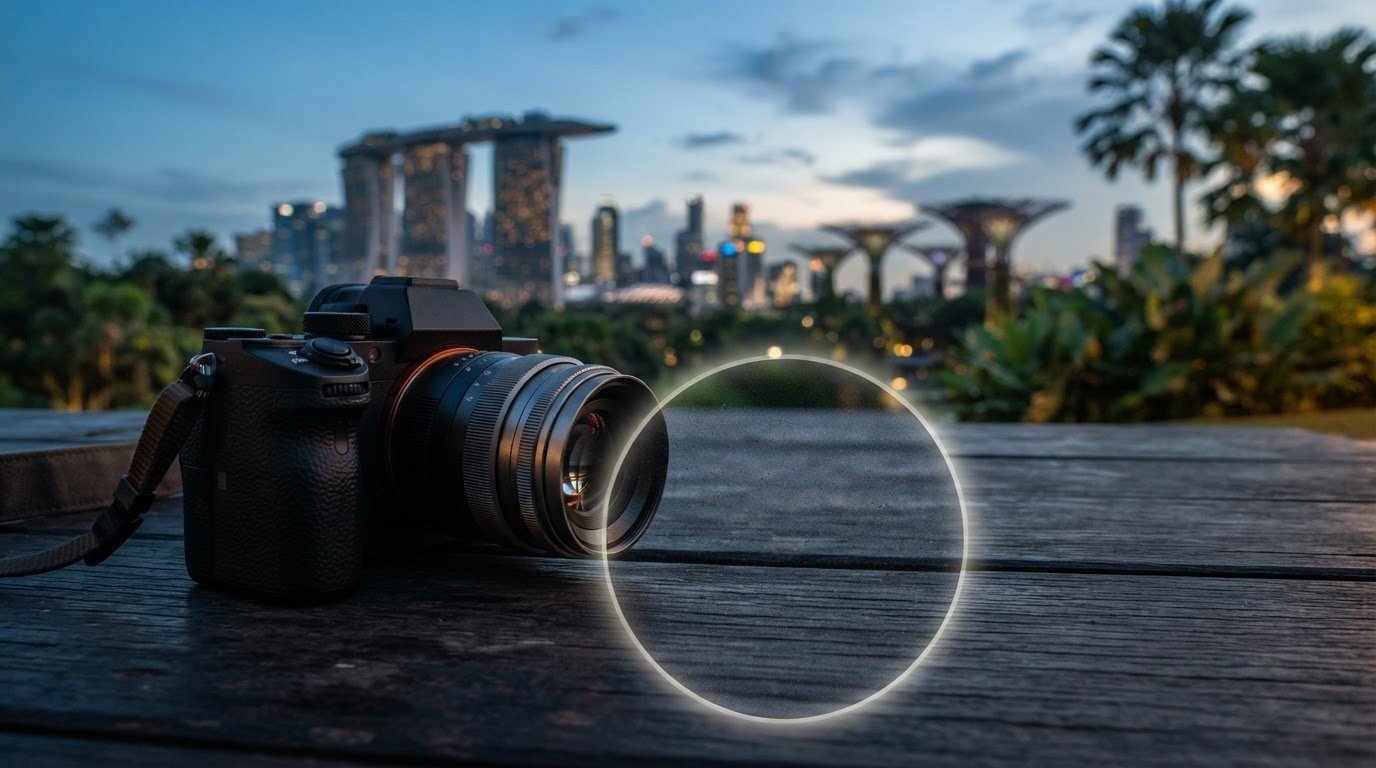

Why Are My Photos Grainy? Causes and Practical Fixes
What if lowering your ISO makes your photo darker without fixing the grain? If you’ve wondered “why are my photos grainy” after changing settings, you’re not alone. High ISO can add noise, but low light, underexposure, long exposures and heavy cropping can also make an image look rough. Grain is often a clue about light and exposure, not just one camera setting.
It’s frustrating when turning down ISO seems like the obvious fix, yet the photo still looks noisy, blurry or too dark. A few simple checks can help you identify the cause and choose a practical adjustment for the scene in front of you.
Below, you’ll learn how to spot noise in shadows and smooth areas, what to change before taking the next shot, and when to adjust exposure, steady the camera or leave ISO higher to keep a moving subject sharp. With practice, you can make clearer exposure decisions in-camera and feel more confident in challenging light.
Key Takeaways
- Grain doesn’t automatically mean your camera is faulty. Learn to recognise digital noise and where it tends to appear.
- Wondering “why are my photos grainy” even at a low ISO? Light, exposure, cropping and image size can all offer clues.
- Match what you see in the photo to a likely cause before changing settings, so you can make a targeted adjustment.
- Choose aperture, shutter speed and ISO according to the available light and how much your subject is moving.
- Practise one exposure adjustment at a time to connect camera settings with the results you see in your photos.
Why Are My Photos Grainy? Recognise Noise Before Changing Settings
A grainy-looking photo doesn’t automatically mean your camera is faulty. Digital noise is a common image effect, and recognising its texture is a useful first step before changing settings. In plain terms, digital noise is unwanted speckled brightness or colour variation, while softness is a loss of sharp edge detail. That distinction can help you work out whether you’re seeing noise, blur or both.
If you’ve asked, “why are my photos grainy,” pause before treating every rough patch as a problem to remove. Some texture may suit the look you want. The Image Noise in Photography overview describes different forms and sources of image noise, but a quick visual check can help you identify what’s happening in your own photo.
What does grain look like in a digital photo?
Look for two broad kinds of noise. Luminance noise appears as uneven brightness, often like fine black-and-white speckles. Chroma noise shows up as stray coloured flecks or blotches that don’t belong in the scene. A photo can contain both, though one type may be easier to spot.
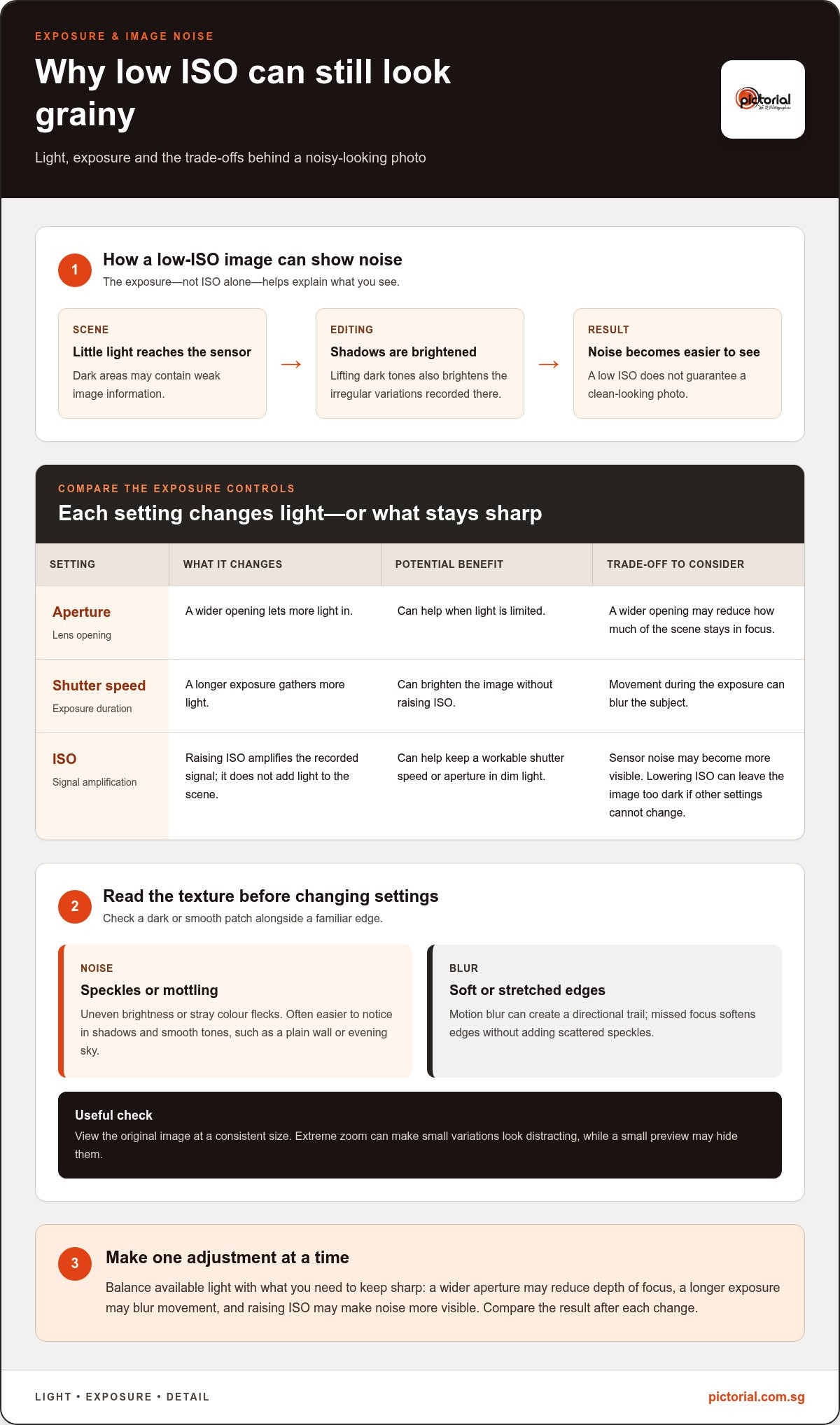
Noise often stands out in dark areas, such as a shaded corner, and in smooth tones, such as a plain wall or evening sky. To judge it fairly, view the original image at a consistent size. Extreme zoom can make small variations look distracting, while a small preview may hide them. Compare the image at the same magnification before deciding that detail has been lost.
Is grain the same as film grain or blur?
Film grain and digital noise can look similar, but they have different sources. Film grain forms from silver halide crystals in the film emulsion; digital noise comes from variations in the signal recorded by a camera sensor. Both may create visible texture, but that doesn’t mean every textured image needs correction. Grain can suit a photograph’s mood, so consider whether it distracts from your subject before trying to remove it.
Blur has a different visual clue. Motion blur often stretches a moving subject or creates a directional trail, while missed focus makes edges look soft without adding scattered speckles. Noise, by contrast, looks like small variations across an area. Check a familiar edge, such as a building outline or a subject’s eye, alongside a dark or smooth patch. If the edge is clear but the patch looks mottled, noise is more likely than blur.
A photo can show both: a sharply focused subject may still have speckled shadows, and a noisy image can also be blurred by movement. Separating these signs gives you a clearer starting point. Before changing settings, note where the texture appears and whether edges remain defined. This helps you avoid adjusting focus or shutter speed to solve a different problem.
What Causes Grainy Photos? Understand ISO, Light, and Exposure
ISO often gets blamed first, but grain makes more sense when you consider the whole exposure. Aperture, shutter speed and ISO work together to record the available light. If little light reaches the sensor, dark areas may contain weak image information. Brightening those shadows later can make unevenness easier to see.
A low ISO alone cannot guarantee a clean photo if the sensor receives too little light or the shadows need heavy brightening later. That’s why the answer to “why are my photos grainy” isn’t always to lower ISO. The right choice depends on the scene and what you need to keep sharp.
How does high ISO make grain more noticeable?
ISO is commonly described as the camera’s sensitivity setting, but raising it doesn’t add light to the scene. It changes how strongly the camera amplifies the sensor’s recorded signal, making the image brighter for a given aperture and shutter speed. Tamron’s guide to Understanding ISO and its Impact on Image Grain explains how ISO fits into the exposure triangle.
In dim light, a higher ISO can help you use a faster shutter speed or a smaller aperture while keeping the photo bright enough. It may also make sensor noise more visible. The practical choice is a balance: lowering ISO can reduce visible noise, but only if you can still use a shutter speed that avoids unwanted movement and an aperture that suits the scene.
Why can a low-ISO photo still look grainy?
A low ISO doesn’t prevent noise from showing in an underexposed photo. Imagine taking a picture in a dim room and leaving a face or background in deep shadow. If you lift those dark tones substantially during editing, you brighten both the useful detail and the irregular variations recorded there. The result may look noisy despite the low ISO setting.
Sensor size and lighting conditions also affect how visible noise appears. A small sensor may show noise more readily in difficult light than a larger sensor, though the result depends on the camera and exposure. There’s no single ISO value that guarantees a clean image across every camera and situation.
Before adjusting ISO, consider what you can change without losing the shot:
- Aperture: A wider opening lets in more light, but may reduce how much of the scene stays in focus.
- Shutter speed: A longer exposure gathers more light, but movement can blur the subject.
- ISO: Raise it when needed to preserve a workable shutter speed or aperture, rather than making the image too dark.
Try changing one setting at a time and compare the result. To practise connecting ISO, aperture and shutter speed to what you see in your images, explore Pictorial’s photography courses.
How to Diagnose Grainy Photos When the ISO Looks Low
A low ISO doesn’t settle the question of why are my photos grainy. Look at where the texture appears, whether edges are sharp and how much of the original frame you’re viewing. These clues help separate noise from blur and point you towards a useful first check, rather than a string of setting changes that are hard to interpret.
| What you notice | Possible cause | First check |
|---|---|---|
| Texture mostly in dark areas | Underexposure or shadows brightened during editing | Review the original exposure and shadow adjustments |
| Speckles across a smooth, evenly lit area | Image noise, possibly made more visible by the light or camera | Compare with another image made in similar light |
| Texture is obvious only in a tight crop | Enlargement makes fine detail and noise easier to see | Compare the crop and full frame at the same magnification |
| Edges look smeared or doubled | Camera or subject movement | Check the shutter speed and whether the subject moved |
| The subject looks soft without speckles | Focus may have missed the intended detail | Inspect the focus point and a clear edge near the subject |
Is the grain mainly in the shadows?
If noise gathers in dark parts of the frame, ask whether those areas were underexposed or brightened afterwards. Check the histogram for how tones are distributed, then compare it with the camera preview. Neither is infallible: a histogram doesn’t show every detail, and the preview can look different depending on the screen and viewing conditions. Treat both as clues, not a final verdict.
If the scene allows it, adding light can help more than lowering ISO. Move towards a brighter area, open the curtains or use a nearby light source. More light reaching the camera can give dark tones clearer information to record, rather than leaving them very dim and lifting them later.
Does the image only look grainy when enlarged?
Compare the full image with a crop at the same magnification. A tight crop enlarges a smaller portion of the original frame, making both noise and fine texture more noticeable. That close-up can be useful for diagnosis, but it isn’t always a fair measure of how the photo will look on a screen or in a print at its intended size. Judge it at the size you plan to view it, too.
Make one test at a time. Keep your framing and lighting as steady as possible, adjust a single setting, then compare the files at the same display size. If you change ISO, shutter speed and aperture together, you won’t know which change affected the result. Also note whether the subject or camera moved: noise calls for an exposure or light check, while missed focus and movement call for different adjustments. This process turns “it looks rough” into a diagnosis you can act on.
How to Take Cleaner Photos: A Practical Grain-Reduction Workflow
If you’re still asking “why are my photos grainy,” use a steady order of adjustments rather than changing everything at once. Start with the light, then decide which exposure setting can change without sacrificing the sharpness or depth of field your picture needs.
- Look for more usable light. Move closer to a window or a brighter part of the scene, or add suitable light if it fits the situation. More light can help you avoid pushing exposure too far later.
- Choose an aperture for the scene. A wider aperture lets in more light, but gives you less depth of field. It can suit a single subject, while a group or landscape may need more of the scene in focus.
- Set shutter speed with movement in mind. A moving person or animal needs a faster shutter speed to stay sharp. For a still subject, you may be able to use a slower speed, but camera movement can still blur the frame.
- Adjust ISO to complete the exposure. If the image would otherwise be too dark, raise ISO enough to keep a suitable shutter speed and aperture. There’s no single value that works for every camera and scene.
- Take one test frame. Check the exposure and the area most likely to look noisy, such as a shadow. Make one adjustment, take another frame and compare before capturing a whole series.
What should you adjust first in a dim scene?
Start by seeking light, then decide whether aperture or shutter speed can help. A wider aperture may brighten the image, if your lens allows it, but it can make the background or parts of the subject fall out of focus. A slower shutter speed gathers light for longer, yet movement may blur the result. If those trade-offs don’t suit the scene, ISO may be the practical adjustment.
How can you check whether the change worked?
Review the test frame at the size that matters for sharing or printing, and inspect the same shadow area each time. If you want more direct control over aperture, shutter speed and ISO, practise in a semi-automatic or manual mode. A Basic Photography Course offers a way to practise those fundamentals; it is for learners aged 9 and above.
Editing can help reduce noise, but use it with restraint. Noise reduction may soften fine details such as hair, leaves or fabric texture. Make the exposure as sound as you can in-camera first, then judge whether the remaining noise is distracting at the image’s intended viewing size.
Build Confidence with Grainy Photos Through Hands-On Camera Practice
Understanding exposure becomes easier when you connect a setting to the photograph it produces. Instead of changing ISO, aperture and shutter speed all at once, practise adjusting one at a time. Notice the light, take a frame and compare the result. If you’ve been wondering “why are my photos grainy,” this habit can turn uncertainty into a useful question: what changed, and what did that do to the image?
Outdoor practice offers changing light and real subjects to work with. You might photograph a shaded subject, then move to brighter light and see how the result changes. A guided instructor can help you think through exposure choices and interpret a test frame, so the next adjustment has a clear purpose. This is practical learning, not a test of whether you already know every camera setting.
What can practical camera instruction help you notice?
Start by observing the light before reaching for a control. Is your subject in shade? Is the background brighter than the subject? These details help you decide whether to change position, open the aperture, adjust shutter speed or raise ISO. With guided practice, you can compare frames straight away and see how your choices affect brightness, focus and movement.
That feedback also helps you avoid treating every imperfect frame as the same problem. A noisy shadow, a blurred moving subject and an image that is simply too dark call for different decisions. Practising one adjustment at a time makes those differences easier to recognise and builds confidence for the next low-light scene.
When might a beginner benefit from guided practice?
If camera settings still feel like guesswork, the Photography Starter Session is a practical way to work on fundamentals such as ISO, aperture and shutter speed. It is 1 session, 3 hours, and the age requirement is All age, min. 9. Classes have a maximum of three participants and include practical outdoor shooting, so learners can try settings in real scenes and connect them with visible results.
You can use your own camera or borrow one. The course includes Complimentary camera loan (if needed) and a Certificate of Completion. For a more structured introduction to photography fundamentals, explore the Basic Photography Course.
There’s no need to master every setting in one go. Choose one scene, make one considered adjustment and look closely at what changes. Repeating that process helps you build your feel for exposure, so grain becomes a clue to investigate rather than a reason to doubt your camera or skills.
Make Your Next Photo a Chance to Practise
The next time you notice grain, treat it as a prompt to pause and observe, not a sign that you’ve failed. Ask what the light is doing, choose one adjustment, then take a test frame. Each small comparison helps you trust your judgement and answer “why are my photos grainy” with more confidence.
If you’d like support turning camera settings into practical choices, Pictorial’s photography courses offer hands-on learning led by photographer Keith. Founded in 2005, Pictorial has taught more than 20,000 students. With practice, exposure decisions become less like guesswork and more like part of how you shape a photograph.
Keep experimenting at a pace that feels comfortable. Every frame gives you something to notice, and every deliberate adjustment helps you grow.
Frequently Asked Questions
Why are my photos grainy even when the ISO is low?
A low ISO can still produce a grainy-looking photo if the exposure is too dark. Noise may become more visible when you brighten shadow areas later, and limited light, a small sensor or a tight crop can also make texture stand out. Check the original file and exposure before making another adjustment. Then assess the image at the size you plan to share or print, not only in a close-up view.
Why do my phone photos look grainy at night?
Phone photos often look grainy at night because the camera has little light to work with and may raise ISO or use a slower shutter speed. Image processing can also smooth fine detail. Try turning on a nearby light, resting your phone on a steady surface and framing closer to your subject instead of cropping heavily afterwards. Compare the finished photo at its normal screen size before deciding whether the texture is distracting.
Can a tripod reduce grain in photos?
A tripod can steady the camera for a stationary scene, such as a building or still life. That may let you use a slower shutter speed and a lower ISO, provided nothing in the frame is moving. It won’t remove noise by itself or freeze a walking person. For moving subjects, keep a shutter speed that preserves sharpness and consider adding light rather than relying on a long exposure.
Does editing remove grain from a photo completely?
Editing can reduce visible noise, but it may not remove it completely without affecting detail. Strong noise reduction can make fine textures, such as hair or foliage, look smooth. Apply a modest adjustment, then compare the result with the original at the size you need. If a face or object was recorded very dark, editing may not recover clear detail, so aim for a balanced exposure at capture whenever possible.
Is grain in a photo a sign that my camera is broken?
Grain alone usually doesn’t mean your camera is broken. Take a few photos in good, even light and check whether speckles appear consistently. Look for the difference between random texture and a mark that stays in the same place across frames. Also make sure you’re not mistaking softness from focus or movement for noise. Comparing well-lit frames can help you identify whether the texture is related to the scene or appears consistently in the same part of the image.
Do more megapixels prevent grainy photos?
No, a higher megapixel count doesn’t by itself prevent grain. Image quality also depends on the sensor, available light, exposure and how much you enlarge or crop the photo. A detailed image may look clean as a full frame but reveal texture when a small portion is enlarged. Compare photos taken in similar conditions and judge them at the size you’ll actually use, rather than choosing by megapixel count alone.

Disclaimer
© Pictorial | All Rights Reserved.