
Understanding Camera Histograms for Beginners: When a Dark Histogram Fits
A histogram pushed to the left can be right for a dark scene. Understanding a camera histogram for beginners starts with this rule: the graph should reflect the light and tones you want to capture, not always sit in the centre. Its left side represents darker tones, its right side brighter ones, and a spike pressed against an edge can warn that detail is being lost.
It’s natural to wonder whether you should set exposure by following the histogram. It’s a useful guide, but it doesn’t decide what a good photograph should look like. A bright beach scene and a dimly lit room shouldn’t necessarily produce the same graph.
This guide explains what the histogram measures, how to use it to spot clipped highlights or shadows, and when a dark distribution suits the scene. You’ll also learn what to consider when contrast exceeds what your camera can capture across both highlights and shadows. With practice, the graph becomes a useful reference rather than another setting to worry about.
Key Takeaways
- Read the histogram from dark tones on the left to bright tones on the right, and use its shape to understand the scene’s tonal balance.
- Watch for spikes at either edge, which can signal lost shadow or highlight detail.
- Adjust exposure to protect the tones that matter most, rather than trying to force every histogram into the centre.
- A dark scene can call for a histogram weighted to the left; judge it by the intended mood and visible detail.
- When a scene’s highlights and shadows exceed what the sensor can capture together, bracketing exposures can provide another way to preserve detail.
The Histogram and Dynamic Range: What Happens When the Scene Exceeds Your Sensor?
For beginners, understanding a camera histogram means learning what its edges reveal when a scene has more contrast than the sensor can record. The graph helps you decide which tones to preserve, but it can’t promise that every bright and dark area will retain detail in one exposure.
Balancing Exposure Beyond the Sensor’s Range
Dynamic range is the span of tones a camera can capture in one exposure, from shadow detail to bright highlights. When a scene’s contrast exceeds that range, a frame may lose detail at either end. This matters when both a shaded foreground and a bright background are important to the photograph.
Use the histogram to see which tones approach an edge, then decide which detail matters most. Increasing exposure can reveal more shadow detail, but may clip highlights. Understanding camera histograms as a beginner starts with recognising this trade-off: one exposure can’t always preserve every tone in a scene.
Adjusting Exposure to Prevent Clipping
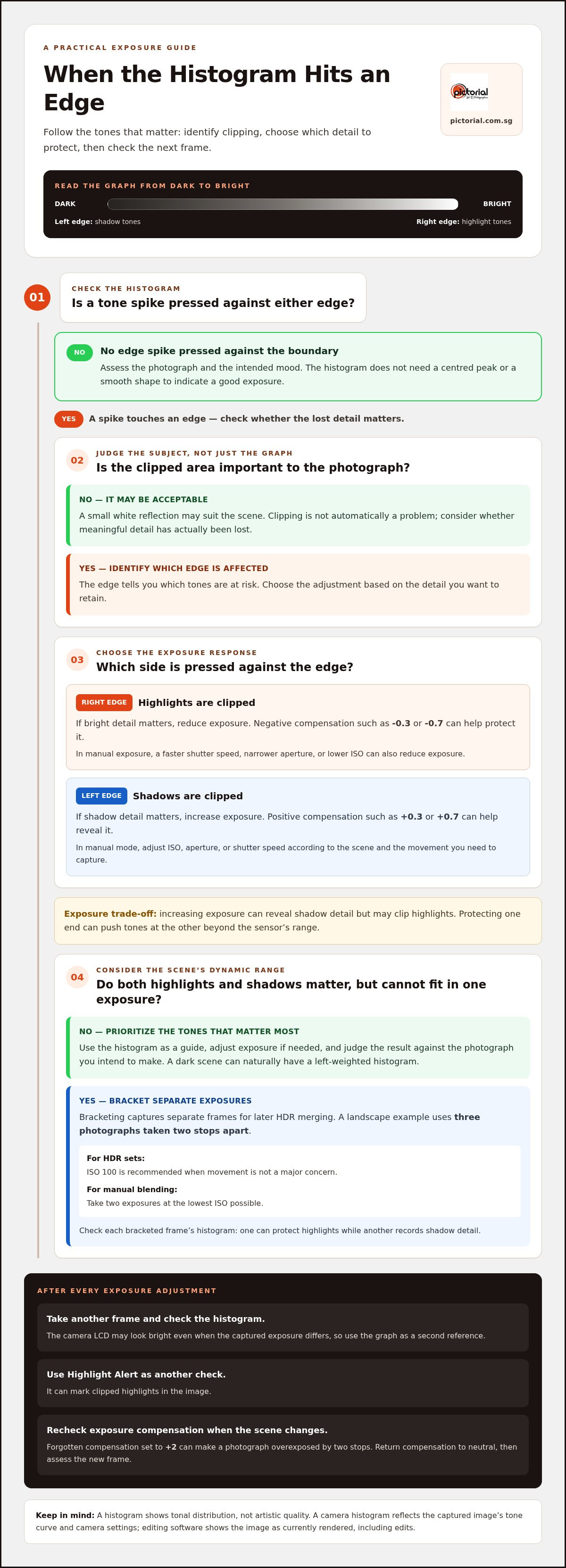
Clipping occurs when tones exceed the camera’s recordable range, leaving no detail in those areas. A spike against the left side signals clipped shadows; one against the right edge signals clipped highlights. Adjusting exposure to protect one end can push tones at the other beyond the sensor’s range.
For example, negative exposure compensation such as -0.3 or -0.7 can protect bright detail. If important shadows are clipped, positive compensation such as +0.3 or +0.7 can help. In manual mode, adjust ISO, aperture, or shutter speed according to the scene and the movement you need to capture.
After each exposure adjustment, take another frame and check the histogram. A spike pressed against the right edge indicates clipped highlights; one at the left indicates clipped shadows. The LCD may look bright even when the captured exposure differs, so the graph offers a useful second reference. Highlight Alert can also mark clipped highlights in the image.
Understanding camera histograms as a beginner also means judging the graph against the photograph you intend to make. A dark subject against a bright background may naturally place many tones to the left. Raising exposure just to centre the graph could sacrifice the brighter background. If shadow detail matters more, increase exposure and check what happens to the highlights.
When both ends matter but cannot fit in one exposure, bracketing captures separate frames for later HDR merging. A landscape example uses three photographs taken two stops apart. The recommended setting for HDR sets is ISO 100 when movement is not a major concern. For manual blending, take two exposures at the lowest ISO possible.
Check each bracketed frame’s histogram: one can protect highlights while another records shadow detail. Remember that forgotten exposure compensation set to +2 can make a photograph overexposed by two stops. Return compensation to neutral when the scene changes, then assess the new frame. For hands-on exposure practice, learn the basics of photography exposure.
Should you Set Exposure using Histogram?
Use the histogram to check whether the image retains the highlight and shadow detail you need, then adjust exposure if clipping appears. A camera histogram usually reflects the captured image’s tone curve and camera settings. Photo-editing software shows the histogram for the image as currently rendered, including any edits.
Assessing Exposure and Clipping
A histogram helps assess exposure by showing whether image tones bunch against either edge, where clipping can remove detail. This is useful because the camera’s LCD brightness can make an image look fine even when tones are lost. Check the graph after capture: a spike against the right edge indicates clipped highlights, while one against the left indicates clipped shadows.
Then inspect the photograph and decide whether the clipped areas matter. A small white reflection may suit the scene, but lost detail across a bright sky may not. The histogram shows tonal distribution, not artistic quality, so use it alongside the subject and your creative intent.
Preventing Clipped Highlights
Prevent highlight clipping by reducing exposure until the bright-tone spike moves away from the right edge. Negative exposure compensation, such as -0.3 or -0.7, can help preserve highlight detail. In manual exposure, a faster shutter speed, narrower aperture, or lower ISO can also reduce exposure.
Make one adjustment, take another frame, and compare the histogram. A camera’s Highlight Alert can identify clipped areas in the image, helping you see where bright detail has been lost. If the highlight matters, reduce exposure. If doing so would make important shadows too dark, weigh both parts of the scene.
Common Histogram Misconceptions
A histogram doesn’t need a centred peak or smooth shape to indicate a good exposure. A dark subject can create a left-heavy graph, while a bright subject can push tones right. The right distribution depends on the scene and the result you intend, not on one ideal shape.
Clipping isn’t the same as a graph briefly touching an edge. Look for tones pressed against that boundary and consider whether meaningful detail has been lost. Gaps between peaks don’t automatically mean the exposure is wrong. A striped subject or a scene with distinct brightness areas can naturally create separate groups of tones.
Camera and Editing Software Histograms
A camera’s histogram gives you an exposure reference while you shoot, but it reflects the image’s tone curve and other camera settings. Adobe Camera RAW shows the histogram for the image as processed in the software, so its shape can change as you edit. This explains why a camera graph and an editing graph may not match exactly.
In Adobe Camera RAW, use clipping warnings alongside the histogram to locate areas that have lost highlight or shadow detail. Adjust exposure or tonal controls and watch how the graph responds. The camera histogram helps guide capture; the software histogram helps assess the file and edits.
Practising these exposure decisions with beginner photography lessons can make the histogram easier to read in real shooting situations.
Reading histogram zones and tone distribution
A histogram turns the tones in a photograph into a graph you can read at a glance. Its axes and overall shape help you interpret brightness, shadow detail, and contrast without expecting one perfect pattern.
Histogram Axes and Tonal Regions
The horizontal axis runs from dark tones on the left to bright tones on the right, while the vertical axis shows how much of each brightness level appears. The graph’s position tells you whether the photograph is mostly dark, bright, or balanced across its tones.
The middle portion represents midtones, between the deepest shadows and brightest areas. In a JPEG, the tonal range can contain up to 256 levels, or 8 bits, from black to white. A portrait in even light may gather much of its information around the middle, while a night scene places more tones on the left.
Read the graph as a map of pixel brightness, not a map of objects. A tall peak near the left means many pixels share dark values; it doesn’t tell you whether they belong to a black coat or a shadowed wall. Compare the tones with the scene and the detail you intended to capture.
The Graph Curve and Its Ends
The curve shows how tones are distributed across the image, and its ends show whether values reach the darkest or brightest limits. It can reveal the photograph’s tonal range, beyond what the camera preview alone suggests.
A graph skewed to the left generally represents a darker image, while one skewed to the right generally represents a brighter image. A peak touching an edge deserves a closer look, especially if the scene should retain detail there. A bright cloud, for example, may reach the right edge, while a dark jacket may press against the left.
Treat the ends as clues, not automatic exposure instructions. A dark photograph may intentionally leave empty space on the right, and a bright snow scene may contain few deep shadows. Your histogram describes captured tones; it doesn’t know whether the subject is meant to feel bright or subdued.
Interpreting Contrast from Shape
The graph’s width gives a broad indication of contrast: a narrow histogram suggests little contrast, while a wide one suggests greater contrast. This helps connect the image’s tonal range with the lighting and subject in front of you.
A foggy scene, for example, may produce a narrow cluster around the middle because it contains few deep shadows or bright highlights. A sunlit street with dark doorways and bright pavement may spread tones across more of the graph. Neither shape is automatically better; each describes a different contrast scene.
Camera settings such as shutter speed affect exposure, but they don’t make the histogram’s shape a universal target. Check whether the distribution suits the photograph: a centred cluster may work for an evenly lit scene, while a left-heavy curve can fit a dark subject. The histogram helps you judge tonal placement before deciding whether an adjustment would improve the result.
Recognising when a dark histogram suits the scene
A low-key photograph usually places more tones on the histogram’s left side, while a high-key image gathers tones towards the right. In bright sunlight or low light, take a frame and read its histogram instead of judging exposure from the screen alone.
Histograms for Naturally Dark or Light Scenes
A naturally dark scene can produce a left-heavy histogram without being underexposed. This distinction matters when darkness conveys the mood or accurately describes the subject.
A dim room with dark furniture, for example, shouldn’t be brightened simply to centre the graph. Check whether important shadow detail remains visible in the captured image. If the histogram shows shadows pressed against its left edge, decide whether those lost tones matter to the scene.
A high-key photograph, such as a pale subject against a bright background, tends to place more tones on the right. A low-key image, such as a dark object against a deep background, tends to place more tones on the left. These are useful patterns, not exposure rules: the histogram should reflect the image you intend to make.
In bright daylight, the camera screen may be difficult to judge clearly, so use the histogram to assess the captured tones. In low light, take a test frame and check whether the tones fall where the scene calls for them. If a dark subject should look naturally dark, don’t raise exposure just to centre the graph.
After importing an image into Lightroom, compare its tonal distribution with the mood you intended. Editing can shift the histogram, but moving the graph alone doesn’t guarantee that the photograph looks right. Look at the subject and its detail, too.
High-Contrast Scenes and Dynamic Range
A high-contrast scene exceeds the camera’s dynamic range when its brightest highlights and darkest shadows can’t both retain detail in one exposure. Recognising that limit helps you choose which tones to preserve instead of sacrificing detail you value through an unsuitable adjustment.
Imagine photographing a shaded subject beneath a bright sky. If you expose for the subject, the sky may clip; if you protect the sky, the subject may lose shadow detail. Check for tones pressing against both ends of the histogram, then decide which part of the image matters most.
When both ends need detail and movement is not a major concern, bracket exposures for later HDR merging. A landscape example uses three photographs taken two stops apart; ISO 100 is recommended for HDR sets when movement is not a major concern. The separate frames record different parts of the tonal range.
If movement makes multiple frames difficult, choose one exposure and protect the most important tones. Shutter speed affects exposure, but changing it can also affect motion in the image. The histogram reveals the tonal trade-off; your subject and shooting conditions guide the choice.
Review the frame after each exposure change. If the left edge clips meaningful shadow detail, increase exposure; if the right edge clips important highlights, reduce it. In a high-key image, some bright tones belong near the right side. In a low-key image, dark tones belong near the left. Judge clipping by whether useful detail disappears, not by the graph’s position alone.
What a camera histogram represents
A camera histogram represents pixel brightness values, not how bright the photograph appears on the camera screen. The LCD can look bright even when the captured image is darker, so use the graph as an exposure reference.
The Image Information in a Histogram
A histogram plots image tones across brightness values, from pure black at zero to pure white at 255. This matters because the graph shows how many pixels fall at each brightness level, helping you see the image’s tonal distribution.
A digital image histogram can display 256 vertical bars, each representing a tonal value. On a luminance histogram, zero means pure black and 255 means pure white. A JPEG can contain up to 256 tonal levels, or 8 bits, between black and white.
Think of a white cup on a dark table. The cup contributes brighter values, while the table contributes darker ones. The histogram combines these pixels by brightness; it doesn’t show where each value appears in the image.
Each bar covers less than 0.4% of the total tonal range. That narrow spacing explains why small changes in tone may shift pixels between neighbouring bars. The graph is a compact summary of image data, not a miniature picture or a complete judgement of whether exposure is correct.
Many cameras display a luminance histogram alongside three colour histograms. The luminance graph summarizes brightness, while the colour graphs show red, green, and blue value distributions. A bright red sign, for example, can reach a limit in its colour channel even when the overall luminance graph doesn’t show the same warning.
Histogram and LCD Preview Differences
The camera’s LCD preview can appear brighter than the captured photograph because the screen emits light. This matters when judging exposure: a clear-looking preview may still contain darker tones or clipped highlights.
A camera histogram depends on exposure, but also on the tone curve and other settings. A contrast setting, for example, can change how tones appear in the preview and histogram without changing the light that reached the sensor. Treat the graph as a guide to recorded tonal values, not as a direct light meter.
When a preview looks bright, check the histogram before deciding the image is correctly exposed. A spike at the left or right edge can reveal values pushed to black or white. Then review the photograph and consider whether those tones contain detail you want to keep.
This distinction is useful in photography because a screen’s appearance changes with its brightness and surroundings, while the histogram summarizes image values. Use both: inspect the photograph for composition and subject, then use the graph to assess tonal placement. Neither view alone describes every quality of the image as you build practical exposure skills with Pictorial.
Pictorial: Photography Starter Session
Pictorial’s Photography Starter Session gives beginners a chance to practise reading a histogram while learning how exposure responds to real scenes. Small groups of up to three participants receive personalised guidance and practical outdoor shooting, where changing light helps you compare the graph with the photograph.
Use your own camera or borrow a complimentary camera from Pictorial. As you work with ISO, aperture, and shutter speed, the histogram becomes a practical tool for making exposure decisions, rather than a graph you have to interpret alone.
If you’re ready to build confidence with your camera, contact Pictorial or visit pictorial.com.sg to explore the Photography Starter Session.
Keep Building Confidence Behind the Camera
Understanding camera histograms as a beginner gets easier when you treat each photograph as a chance to make a deliberate choice. Before your next shoot, decide which detail matters most, take a frame, and use the graph to guide your next adjustment. This habit turns exposure from guesswork into practice.
For guided practice, Pictorial’s Photography Starter Session is a place to work through camera fundamentals. The Intermediate Photography Course can support your next stage, while Mobile Photography Essentials focuses on shooting with a phone. Choose the learning path that matches what you want to practise next.
Keep experimenting, stay curious, and let each frame teach you something useful. Build confidence one considered photograph at a time.
Frequently Asked Questions
What does a good histogram look like in photography?
A good histogram suits the photograph; it doesn’t have a fixed shape. A bright beach scene may place many tones on the right, while a dimly lit interior may lean left. Check whether important areas retain the detail you want, then consider the scene’s mood. A graph touching an edge is a reason to inspect those tones, not automatic proof that the exposure is wrong.
What is the difference between a luminance histogram and an RGB histogram?
A luminance histogram summarizes overall brightness, while an RGB histogram displays separate red, green, and blue channel distributions. This matters for strongly coloured subjects. A vivid red flower, for example, may push its red channel towards the limit even if the luminance graph looks moderate. Compare channel graphs when photographing saturated colours, especially if you need to preserve subtle detail in petals, fabric, or signs.
Can you recover blown-out highlights when editing?
Only if the image file retains highlight information. If a bright area is clipped in every colour channel, editing can’t restore texture the camera never recorded. A RAW file may retain more highlight data than its preview suggests, so try reducing highlights or exposure in your editor and inspect the result. If the area stays blank, protect it during capture next time by reducing exposure.
What Is ETTR (Expose to the Right)?
ETTR means exposing an image so its histogram moves towards the right without clipping important highlights. The idea is to record brighter values while retaining highlight detail, then adjust the image’s appearance later. A landscape with bright clouds, for example, needs careful checking: pushing exposure too far can erase cloud texture. ETTR is a technique, not a rule for every scene, and may not suit moving subjects or changing light.
What Is Highlight Clipping, and Why Does It Ruin Photos?
Highlight clipping occurs when bright image values exceed the camera’s recording range, leaving those areas without recoverable detail. A white shirt may lose its folds, or cloud texture may disappear into a flat white patch. Clipping can harm a photograph when that detail matters to the subject. Small clipped reflections, such as a catchlight or glint, may be acceptable when they support the image.
What Is Shadow Clipping?
Shadow clipping occurs when dark image values fall below the camera’s recording range, turning areas black with no recoverable detail. It can remove texture from dark hair, clothing, or a shaded doorway. Before brightening the whole image, decide whether those shadows should stay dark for the intended mood. If texture matters, capture more exposure while watching that important highlights don’t lose detail.
What Is a Camera Histogram?
A camera histogram is a graph summarizing the brightness values in a captured image. It lets you assess the photo’s tonal distribution without relying only on how the preview looks. After photographing a dark cat on a pale sofa, for example, the graph can show that the image contains both dark and bright values. It can’t identify which objects produced them.
What does a spike on the right side of the histogram mean?
A spike pressed against the histogram’s right edge means bright tones may be clipped, with highlight detail lost. Check the affected area in the photograph: a blank patch across a cloud may be a concern, while a small reflection may be intentional. If the detail matters, reduce exposure and take another frame. Compare the histogram and image to see whether the highlight texture remains.

Disclaimer
© Pictorial | All Rights Reserved.